Get AMMOSMS on your phone
AMMOSMS works like an app once it's on your home screen — and that's also how you get restock notifications even when the site is closed. Follow the steps for your phone below, or install the Chrome extension for desktop alerts on your computer.
iPhone & iPad
Requires iOS 16.4 or later, and you must use Safari.
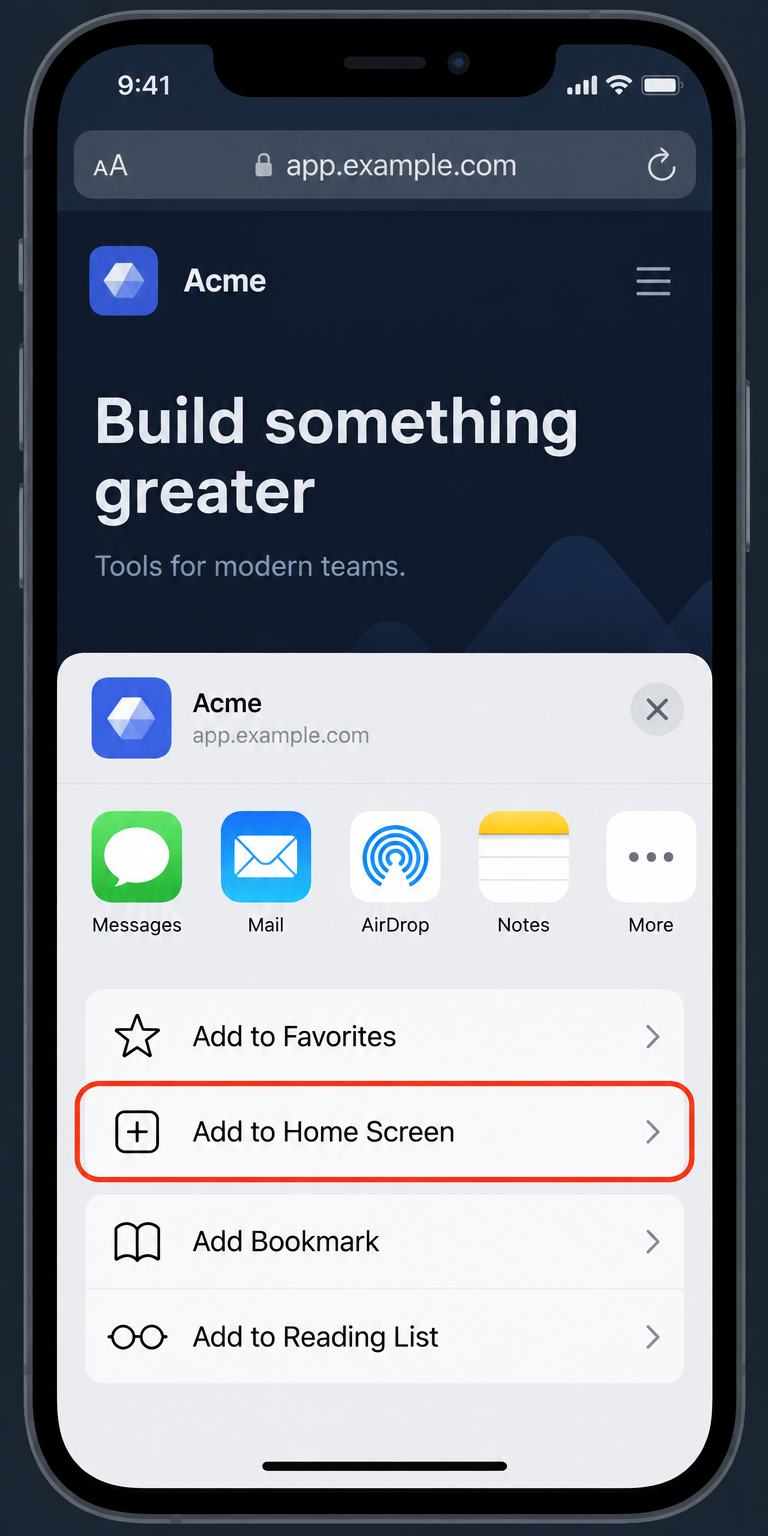
Open AMMOSMS in Safari and tap Share
Open ammosms.com in Safari, tap the Share button (the square with an arrow at the bottom of the screen), then scroll down and tap Add to Home Screen.
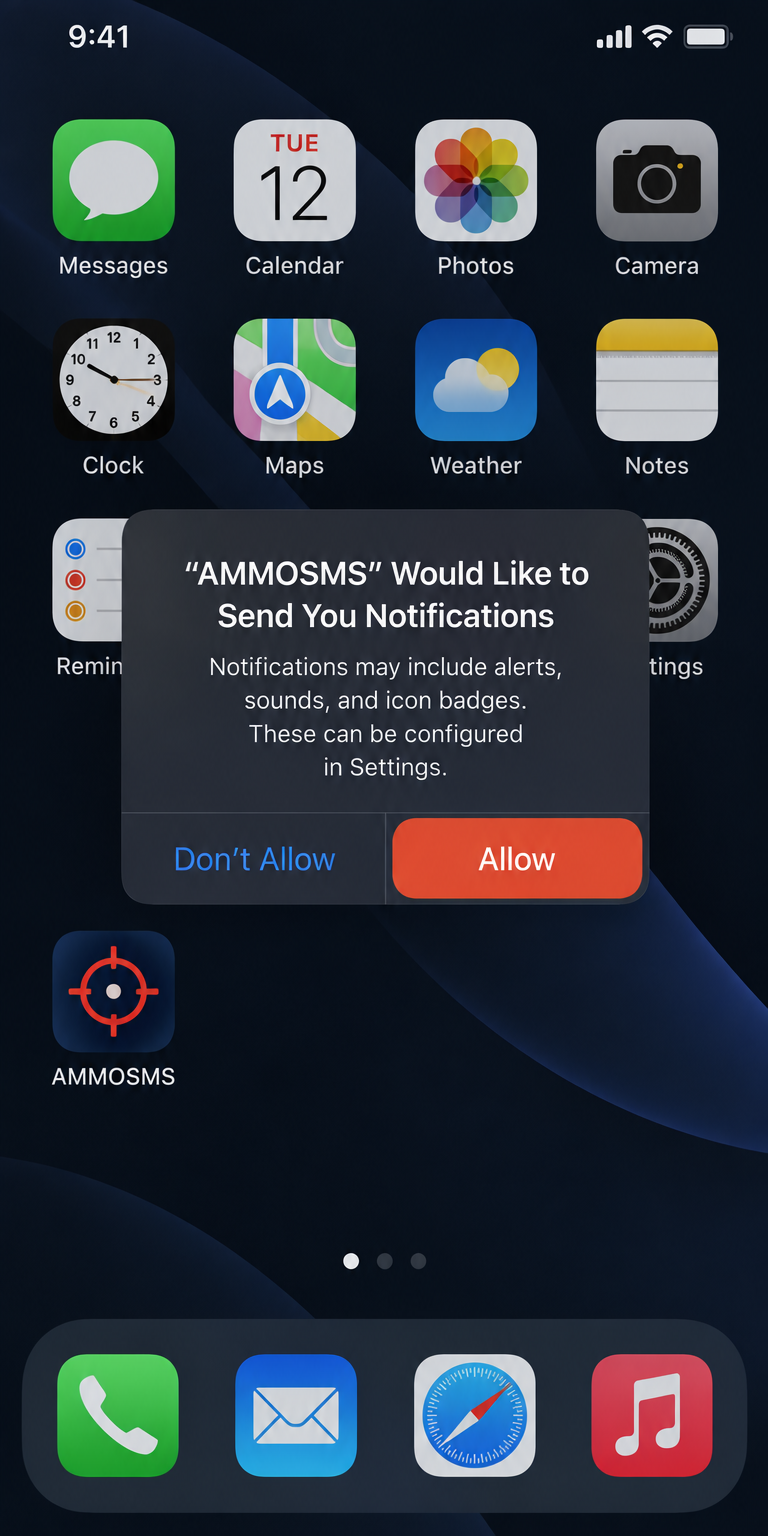
Open AMMOSMS from your Home Screen and allow notifications
Tap the new AMMOSMS icon on your Home Screen — this is important, notifications only work from the installed app. Sign in, go to your dashboard, and tap Enable push on this device. When the prompt appears, tap Allow.
Android
Works in Chrome, Edge, Brave, and most other Android browsers.
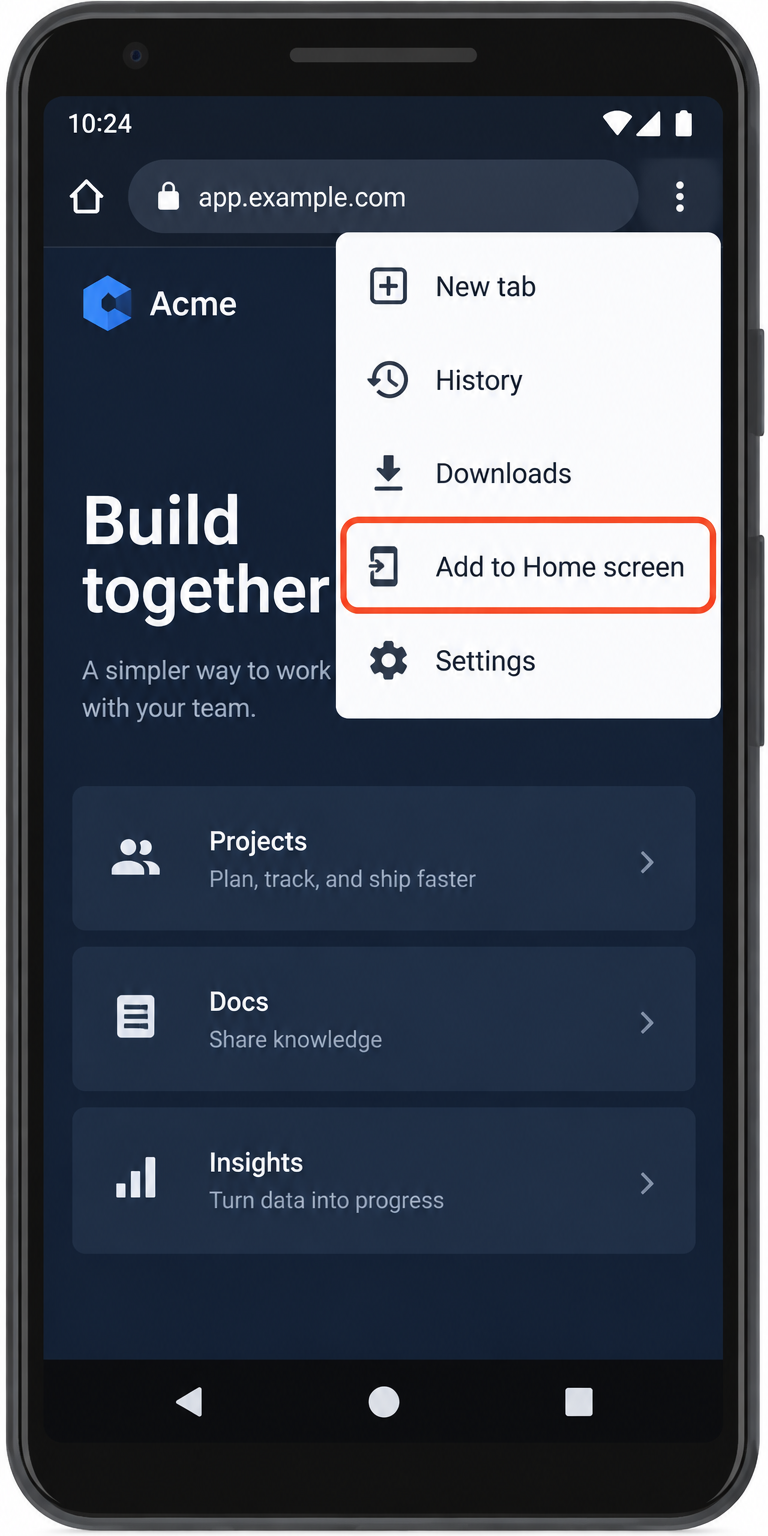
Open the browser menu and add to your Home screen
Open ammosms.com in Chrome, tap the ⋮ menu (top right), then tap Add to Home screen or Install app.
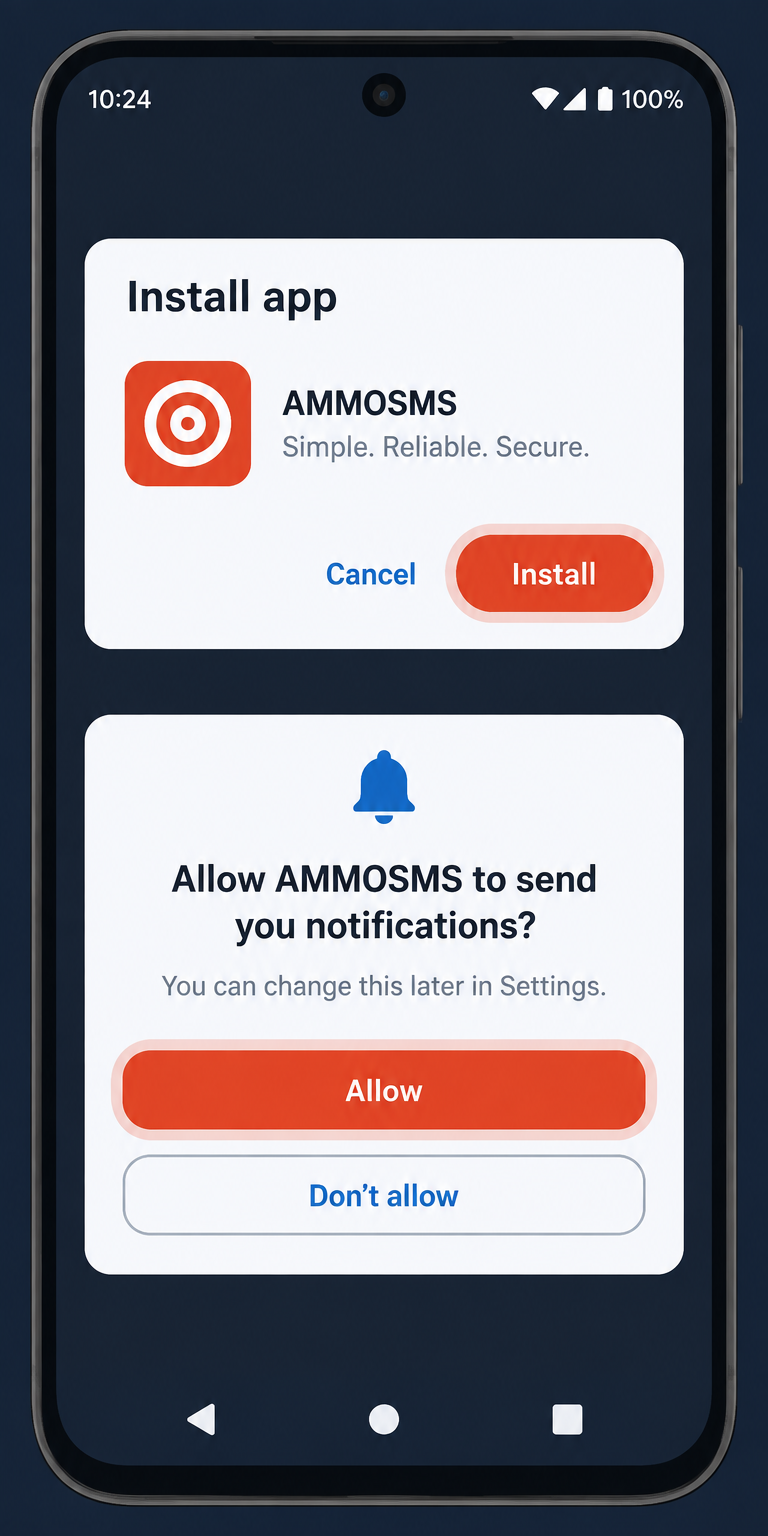
Install, then allow notifications
Tap Install when asked. Then open AMMOSMS from your Home screen, sign in, and tap Enable push on this device on your dashboard. Tap Allow on the notification prompt.
Turning notifications on (any device)
- Sign in and open your dashboard.
- In the Notifications panel, make sure Push alerts for my account is switched on (it's on by default).
- Tap Enable push on this device and choose Allow when your browser asks.
- Tap Send test push to confirm — you should get a notification within a few seconds, even with the site closed.
If you previously tapped "Don't allow", you'll need to re-enable notifications for this site in your browser or phone settings first.
Chrome extension (desktop)
Get restock alerts on your desktop even with every AMMOSMS tab closed. Works in Chrome, Edge, Brave and other Chromium browsers on Windows, Mac and Linux.
Download extension (v1.0.0)Download and unzip
Download the file and unzip it. You'll get a folder named ammosms-alerts-extension. Keep it somewhere permanent, like Documents. If you delete the folder, the extension stops working.
Open the extensions page
In Chrome, go to chrome://extensions (Edge: edge://extensions, Brave: brave://extensions). Turn on Developer mode, the switch in the top-right corner (in Edge it's in the left sidebar).
Load the extension
Click Load unpacked and select the ammosms-alerts-extension folder, the one that contains manifest.json.
Connect your account
A tab opens at AMMOSMS automatically. If it doesn't, click the AMMOSMS icon in the toolbar and choose Connect my account. Sign in if asked, then click Connect extension.
Pin it
Click the puzzle-piece icon in the toolbar and pin AMMOSMS Restock Alerts. The icon shows a count of unread restocks.
How it works
- It checks for new restocks every minute while your browser is running.
- Each alert has View listing and Dismiss, and repeats every 5 minutes until you dismiss it.
- Dismissing it in the extension, on your dashboard or from a phone notification clears it everywhere.
- To disconnect, use Disconnect this browser in the extension, or the Chrome extension section of your dashboard.
Notes
- The extension isn't in the Chrome Web Store yet, so Chrome may occasionally show a "Disable developer mode extensions" message. Choose to keep it.
- To update: download the new zip, replace the folder's contents, then click the reload icon on the AMMOSMS card at
chrome://extensions. - If you use notification Do Not Disturb or Focus mode on your computer, allow Chrome notifications there.
On a computer
No installation needed. In Chrome, Edge, or Firefox, sign in, open your dashboard, and tap Enable push on this device. You'll get restock notifications on your desktop even when the tab is closed (the browser just needs to be running in the background).
Prefer a toolbar icon with an unread count? Use the Chrome extension.